Documentation Older manuals
AromaController iOS
How to connect an Aroma Shooter® and emit scents with AromaController on iPhone, iPad and Mac.
This app is no longer updated. This manual is kept for anyone still using it.
This is the manual for the AromaController application on iOS devices. AromaController lets you test your Aroma Shooter® as quickly as possible. It was made for almost all platforms, including Windows, Android, iOS, Ubuntu and macOS.
Features
- Easy to use: connect the device and emit scents.
- Customizable interface: upload your own images.
- Simple digital signage system.
Requirements
Device
- iPhone: iOS 11.0 or later
- iPad: iPadOS 11.0 or later
- Mac: macOS 11.0 or later, on a Mac with an Apple M1 chip or later
- A BLE-compatible Aroma Shooter. If the device’s serial number starts with “ASN1B” or “ASN2A”, it is BLE-compatible.
Connection
- Bluetooth BLE
Download
AromaController for iOS is no longer distributed. If you need it, please contact contact@aromajoin.com.
Connect to an Aroma Shooter
Before you can control scents, link the app with your Aroma Shooter over Bluetooth.
- On the main screen, tap “No connection” at the top right to open the connection screen.
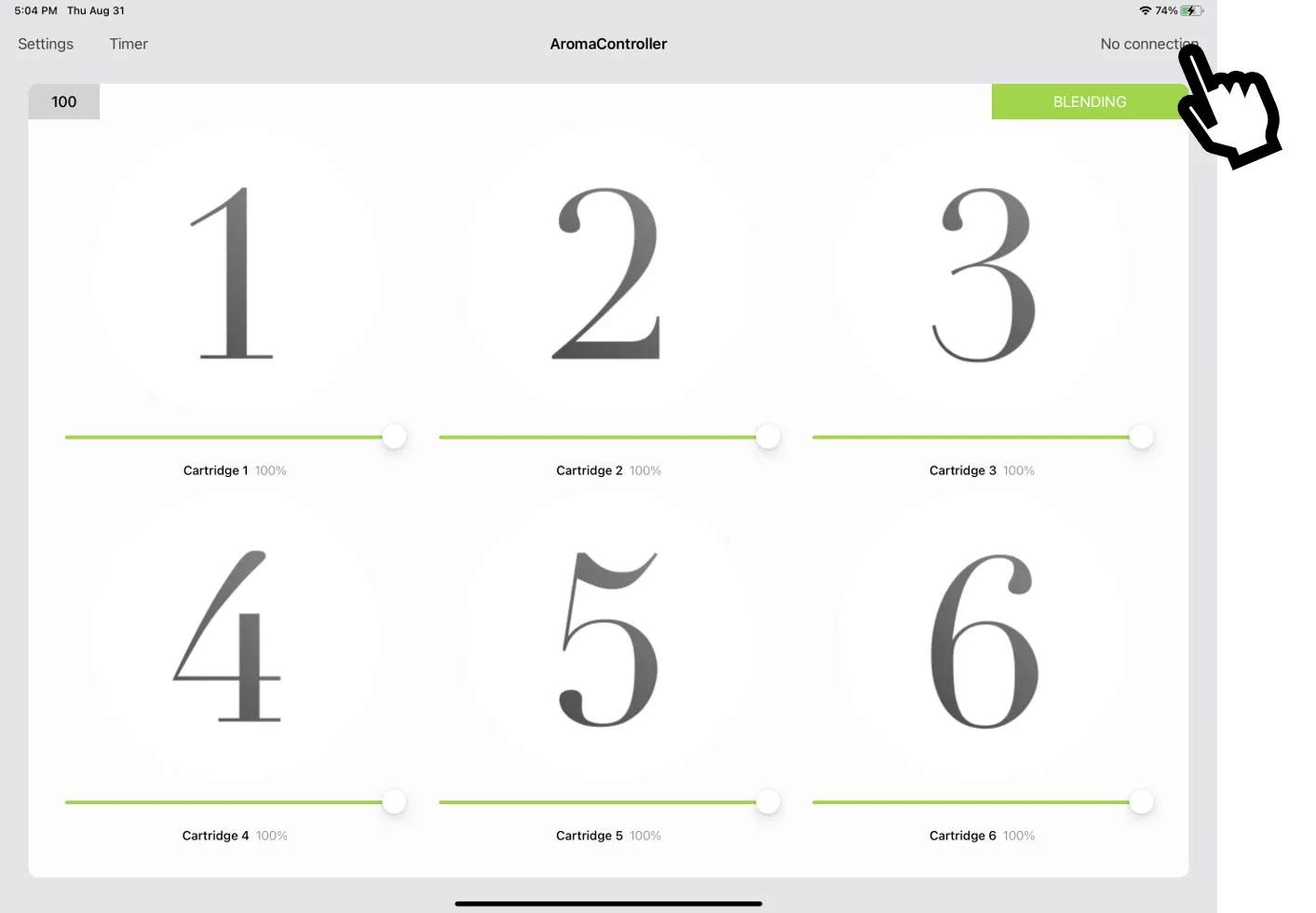
- The connection screen has two sections. “Connected” lists the Aroma Shooters connected now. “Available” lists the devices found nearby.
- Tap the serial number of the Aroma Shooter you want. When the connection succeeds, the serial number moves from “Available” to “Connected”.
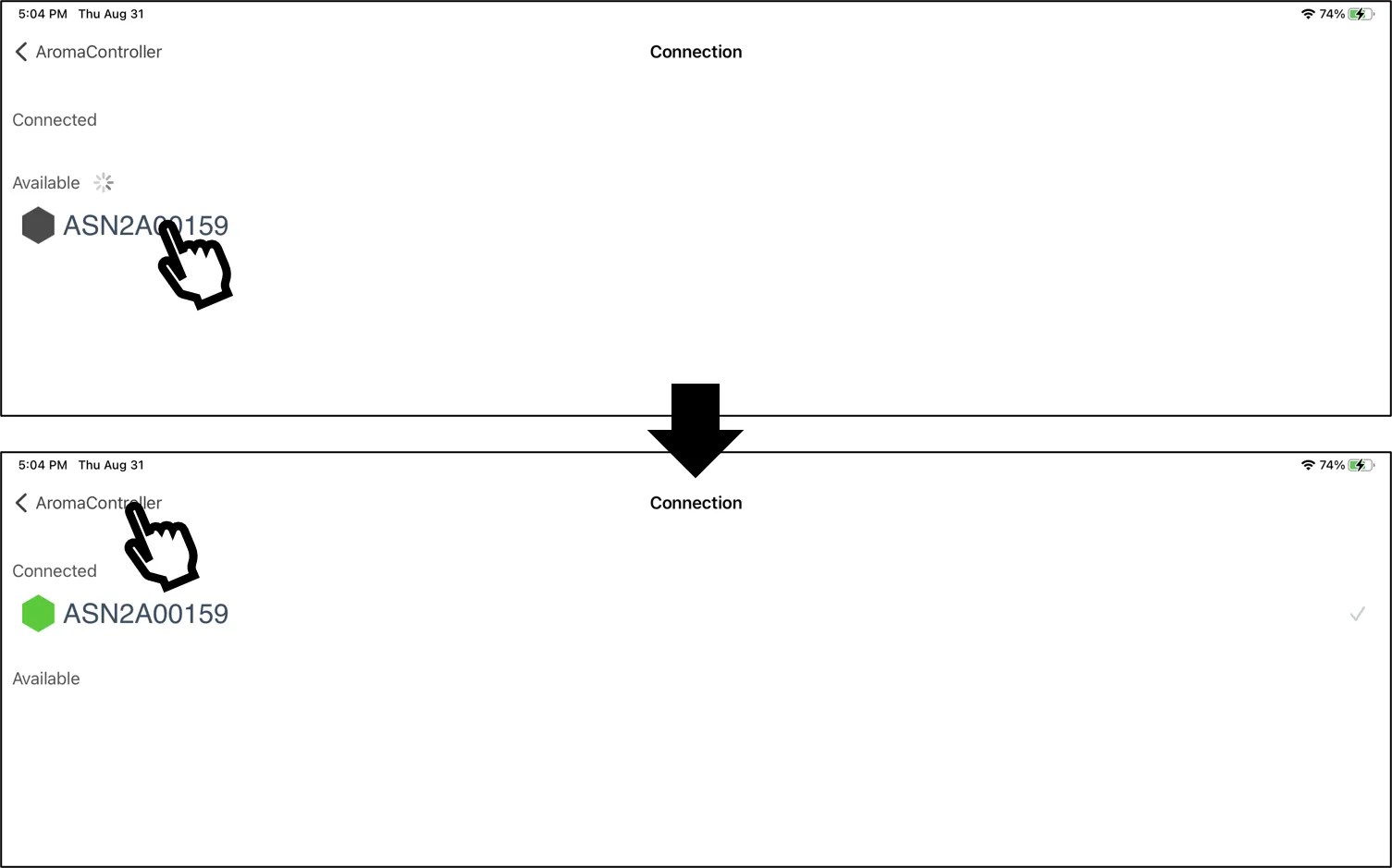
- Tap back to return to the main screen. “No connection” changes to “Connected” while at least one Aroma Shooter is connected.
Emit scents
Tap a cartridge button to emit that scent.
Change settings
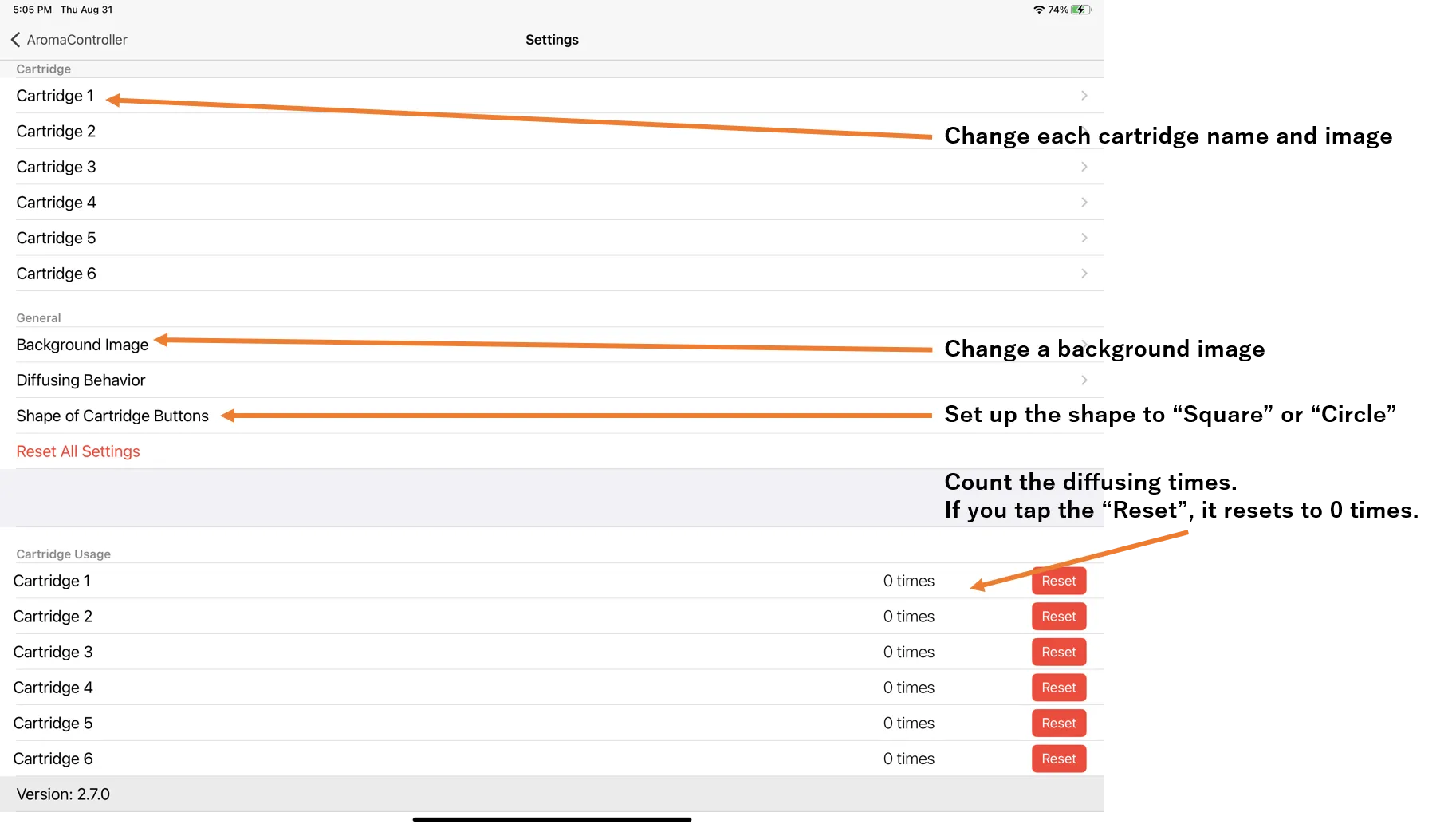
To open the settings screen, tap “Settings” at the top left of the home screen. There you can change:
- Cartridge name and image
- Cartridge button shape (circle or square)
- Home screen background image
- Shooting behavior: emit for a fixed duration (up to 10 seconds), or emit continuously while touching
Emission stops after 10 seconds even if you set a longer duration.
Under “Cartridge Usage”, the app counts how many times each cartridge has emitted scent. Tap “Reset” to set the count back to 0.
Timer
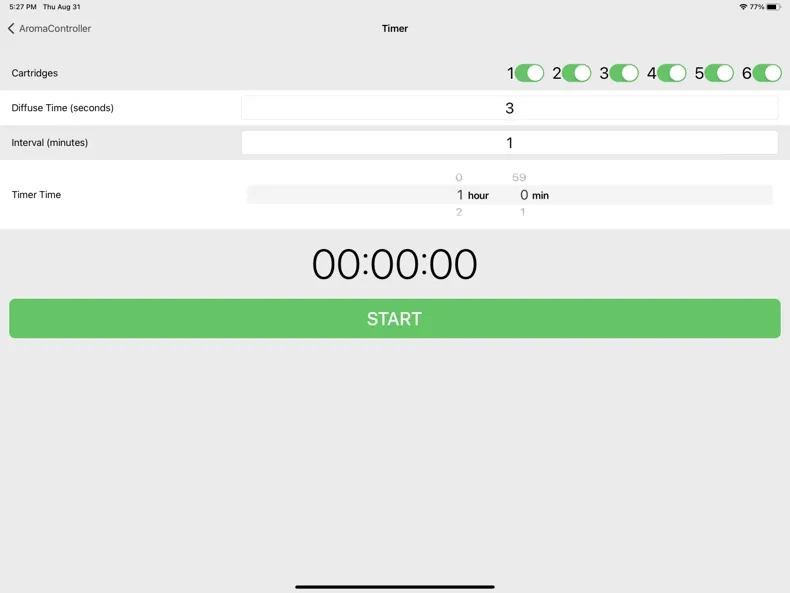
Tap “Timer” at the top left of the home screen. On the Timer screen you choose the cartridges, the shoot time (seconds), the interval (minutes) and the timer time, then tap “START”.
Others
There are other minor functions you can explore in the app. If you have questions, write to contact@aromajoin.com.