Documentation Older manuals
AromaPlayer Windows
How to sync and edit scents with videos in AromaPlayer® for Windows.
This app is no longer updated. This manual is kept for anyone still using it.
This is the manual for the AromaPlayer® application on Windows. AromaPlayer lets you synchronize and edit scents and videos, so you can easily match the aromas you choose to the content of a video.
Requirements
Device
- Windows 7 or later
- Aroma Shooter® (USB connection)
Connection
- Serial (USB)
Software
- QuickTime Player. Install it before you install AromaPlayer.
Download and installation
AromaPlayer for Windows is no longer distributed. If you need it, please contact contact@aromajoin.com.
The installer is an .msi file. Double-click it to start the installation.
Screen layout
The app has only one screen. Knowing its parts is all you need to start.
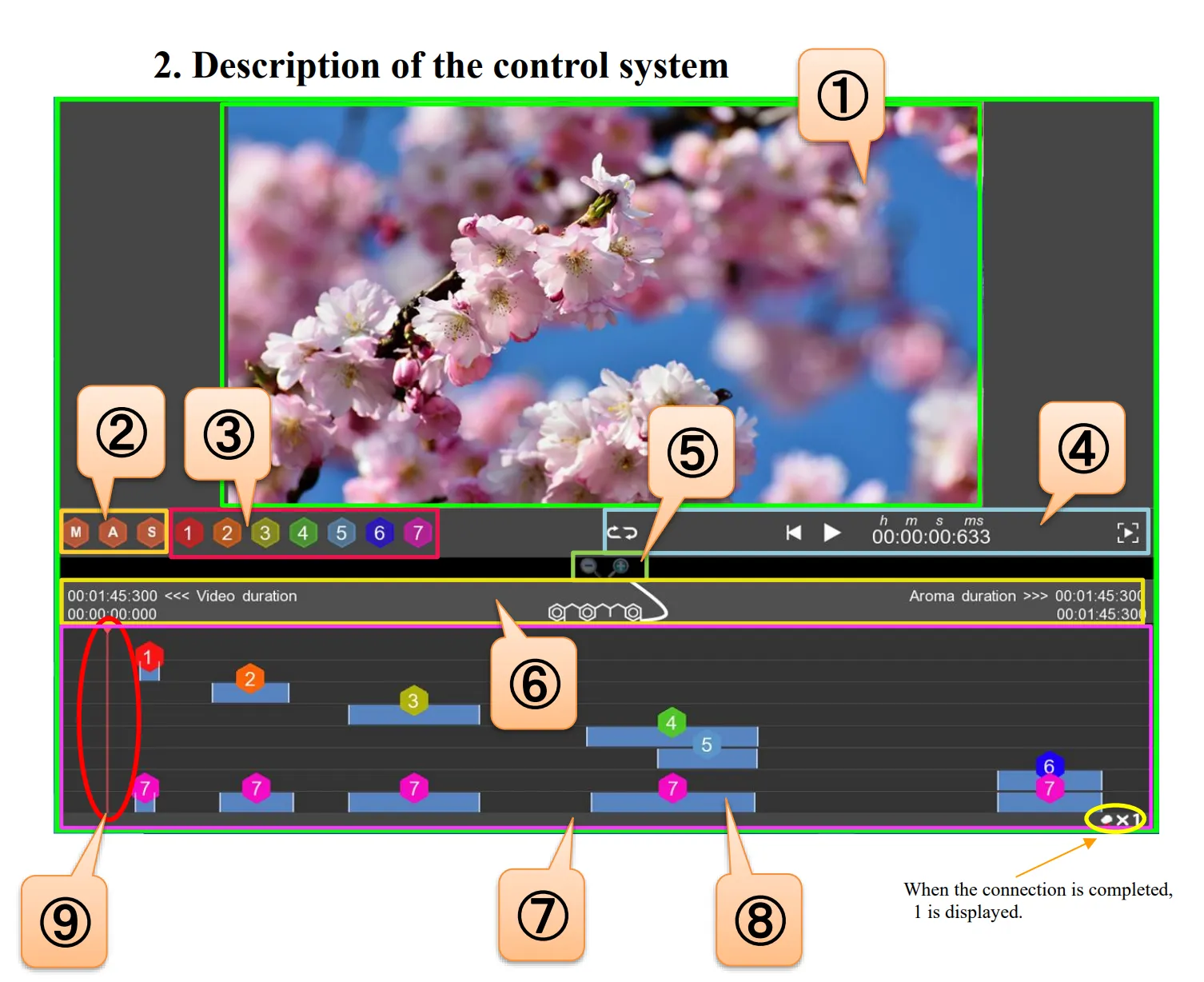
- Video playback screen
- Data control buttons
- “M” (movie): import a video.
- “A” (aroma): load a saved aroma timeline.
- “S” (save): save your current progress.
- Scent channels: drag the aroma numbers ① to ⑥ onto the timeline to sync the aroma in each cartridge slot with the video. Number 7 has no scent. It only widens the reach of the other aromas when used at the same time.
- Video playback controls: loop, play/pause, or show the video in full screen.
- Scaling buttons: zoom the timeline in and out while the video is paused.
- Video metadata
- Scent timeline: shows your Aroma Data. Drop aroma numbers onto the timeline to create Aroma Data, and right-click a number to delete it. Right-click the edge of a time bar (⑧) to fine-tune the shooting time. The playback line (⑨) is linked to the video playback screen (①) and the playback controls (④), and shows the current time on the timeline. You can create Aroma Data without importing a video.
When the Aroma Shooter is connected, “1” is shown at the bottom right of the timeline.
Basic workflow
- Connect the Aroma Shooter to your computer.
- Open AromaPlayer. If you connect the Aroma Shooter after opening AromaPlayer, it may not be recognized.
- Click “M” and choose a video file. If you are not importing a video, go on to the next step.
- Create your Aroma Data. See Edit the scent timeline below.
- Click “S” to save your Aroma Data.
Edit the scent timeline
- Right-click the Aroma duration time at the right end of the timeline to adjust when your Aroma Data ends.
- Drag and drop each aroma number (① to ⑥) to the point on the timeline where you want that aroma to be emitted. ⑦ is the booster.
- Drag the white line at the end of the bar under a number tag to adjust the shooting time. Right-click a number tag to delete it.
- Right-click the white line at the end of the bar to type in the time directly. “d” is the shooting duration and “t” is the time where the end line of the bar sits. You can also use the scaling buttons (⑤) to make fine adjustments.
Supported file formats
Video
- QuickTime Movie (.mov)
- MPEG-4 (.mp4, .m4v)
- MPEG-2 (OS X Lion or later)
- MPEG-1
- 3GPP
- 3GPP2
- AVCHD (OS X Mountain Lion or later)
- AVI (Motion JPEG only)
- DV
Music
- iTunes Audio (.m4a, .m4b, .m4p)
- MP3
- Core Audio (.caf)
- AIFF
- AU
- SD2
- WAV
- SND
- AMR
Others
There are other minor functions you can explore in the app. If you have questions, write to contact@aromajoin.com.