Documentation Older manuals
AromaPlayer iOS
How to use the beta version of AromaPlayer® on iPhone and iPad.
This app is no longer updated. This manual is kept for anyone still using it.
This is the manual for the beta version of AromaPlayer® on iOS devices. AromaPlayer synchronizes scent with your videos.
Overview
- Create, play, edit and delete scent tracks on the aroma timeline.
- Save your work to the cloud and sync it between mobile and desktop.
- Emit scent from several Aroma Shooter® devices.
Requirements
Device
- iOS 8.0 or later
- iPhone or iPad
- Aroma Shooter® 1 (BLE type) or Aroma Shooter® 2
Connection
- Bluetooth BLE
- Internet connection
Download
AromaPlayer for iOS is no longer distributed. If you need it, please contact contact@aromajoin.com.
Getting started
You need an account to use AromaPlayer. With an account, your progress and settings are saved online and you can open them from several devices.
Sign up
If you already have an account, skip this step.
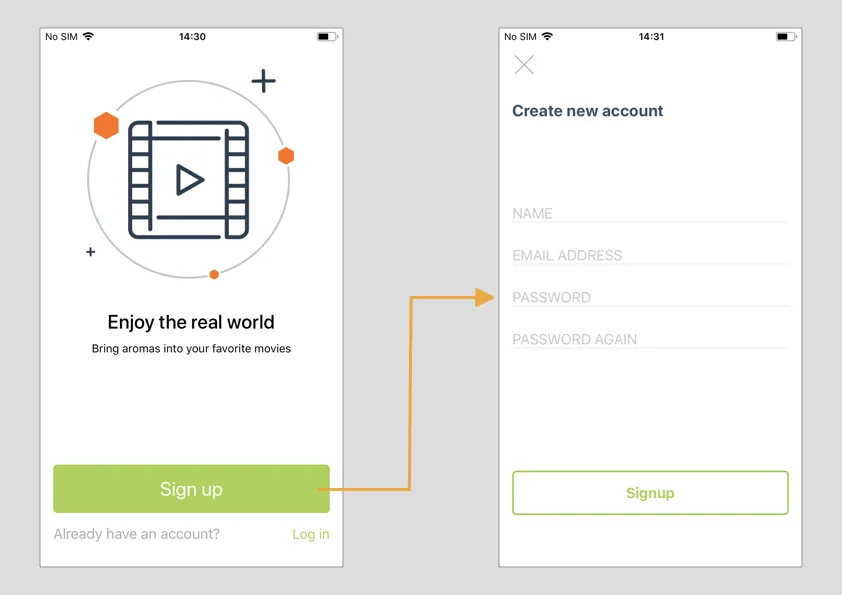
- Tap “Sign up”.
- Fill in your details on the “Create new account” screen.
- Tap “Sign up” to finish.
Log in
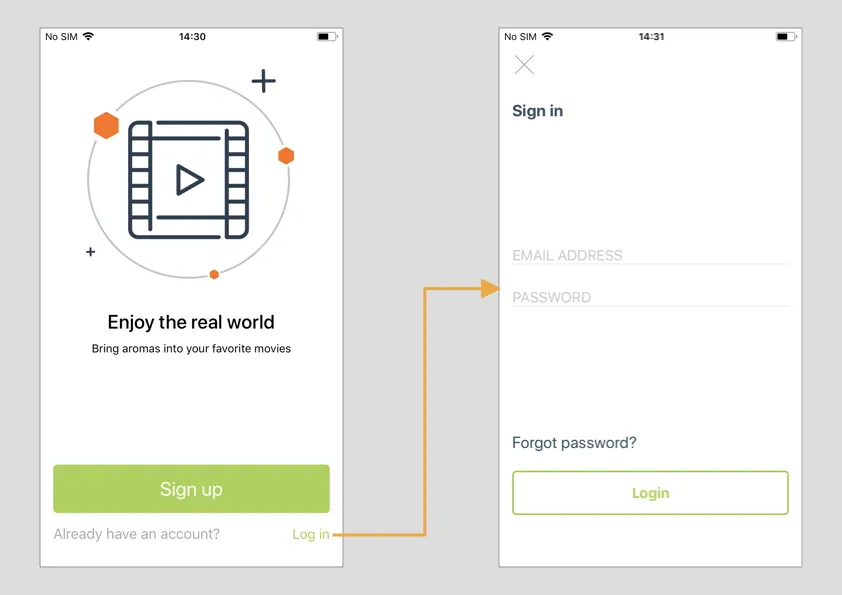
- Tap “Log in”.
- Enter your email address and password.
- Tap the “Login” button.
Connect to an Aroma Shooter
You need to connect to an Aroma Shooter to use the app’s features. The device list is on the “AS” tab.
- Tap your device’s serial number in the “Available” list. If it does not appear, make sure Bluetooth is turned on on your iOS device. Devices you can connect to appear under “Available”.
- Once connected, the hexagon ”⬢” turns green and the device moves to “Connected”.
- Tap ”⚙” to set up the cartridges. Tap the Bluetooth icon to disconnect.
Set up the cartridges
- After connecting, tap ”⚙”.
- Tap one of the yellow boxes.
- Enter the cartridge name or serial code.
- Set all six cartridges the same way.
- Move the bars to adjust the intensity of each scent.
- Tap a cartridge image to emit that scent from the Aroma Shooter.
Videos
Watch a video
- In the ”▶” (Watch) menu, tap a video you like.
- A popup shows how many of the video’s scents match the cartridges in your Aroma Shooter. Check it, then tap “Continue playing the video” and enjoy.
Create and edit a video
- In the Create menu, tap ”⊕”.
- Tap the video icon to start a scented video.
- Choose “Local video” to use a video you already have, or “YouTube video” to enter the link of a video on YouTube. You get the link by tapping “Share” under the YouTube video.
- Change the video title.
- Adjust the video editing screen.
- Touch the scent timeline at the moment you want. A scent editing popup opens, where you can turn the booster on or off and adjust the intensity. To make editing easier, tap “5×” to change the timeline scale.
- Set the video to Public or Private.
Others
If you have a problem or need help, write to contact@aromajoin.com.