Documentation Older manuals
AromaController Desktop
How to install AromaController on Windows, Mac or Ubuntu and emit scents over USB.
This app is no longer updated. This manual is kept for anyone still using it.
This is the manual of AromaController for desktop operating systems (Windows, Mac and Ubuntu).
Download and installation
AromaController Desktop is no longer distributed. If you need it, please contact contact@aromajoin.com.
The app comes as a .zip file. Unzip it and open the folder. On Windows and Mac, install the driver before the application.
- Windows: double-click CDM21228_Setup.exe to install the driver, then double-click AromaController-2.0.0-win.exe to install the application.
- Mac (macOS): double-click FTDIUSBSerialDriver_v2_4_2.dmg to install the driver, then double-click AromaController-2.0.0-mac.dmg to install the application.
- Linux (Ubuntu): double-click AromaController-2.0.0-amd64.deb to install the application.
Connect the Aroma Shooter
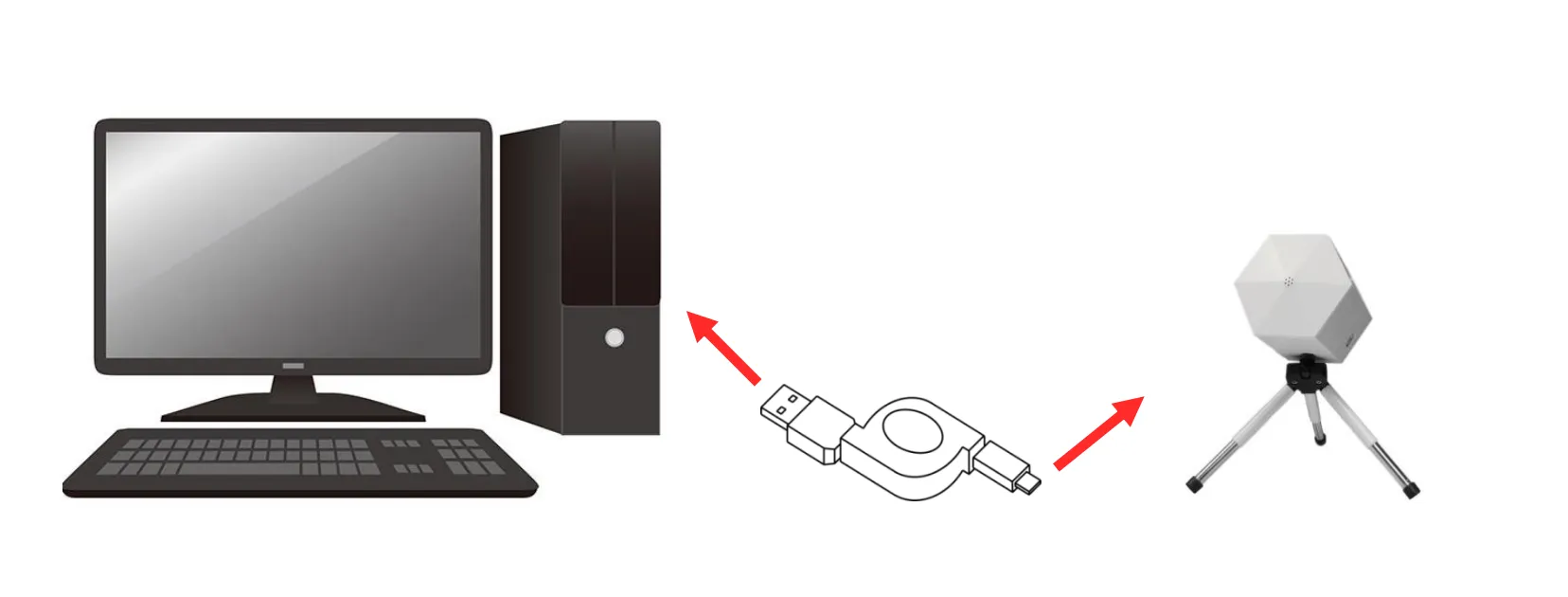
After installing, connect your Aroma Shooter® to your computer with a USB cable.
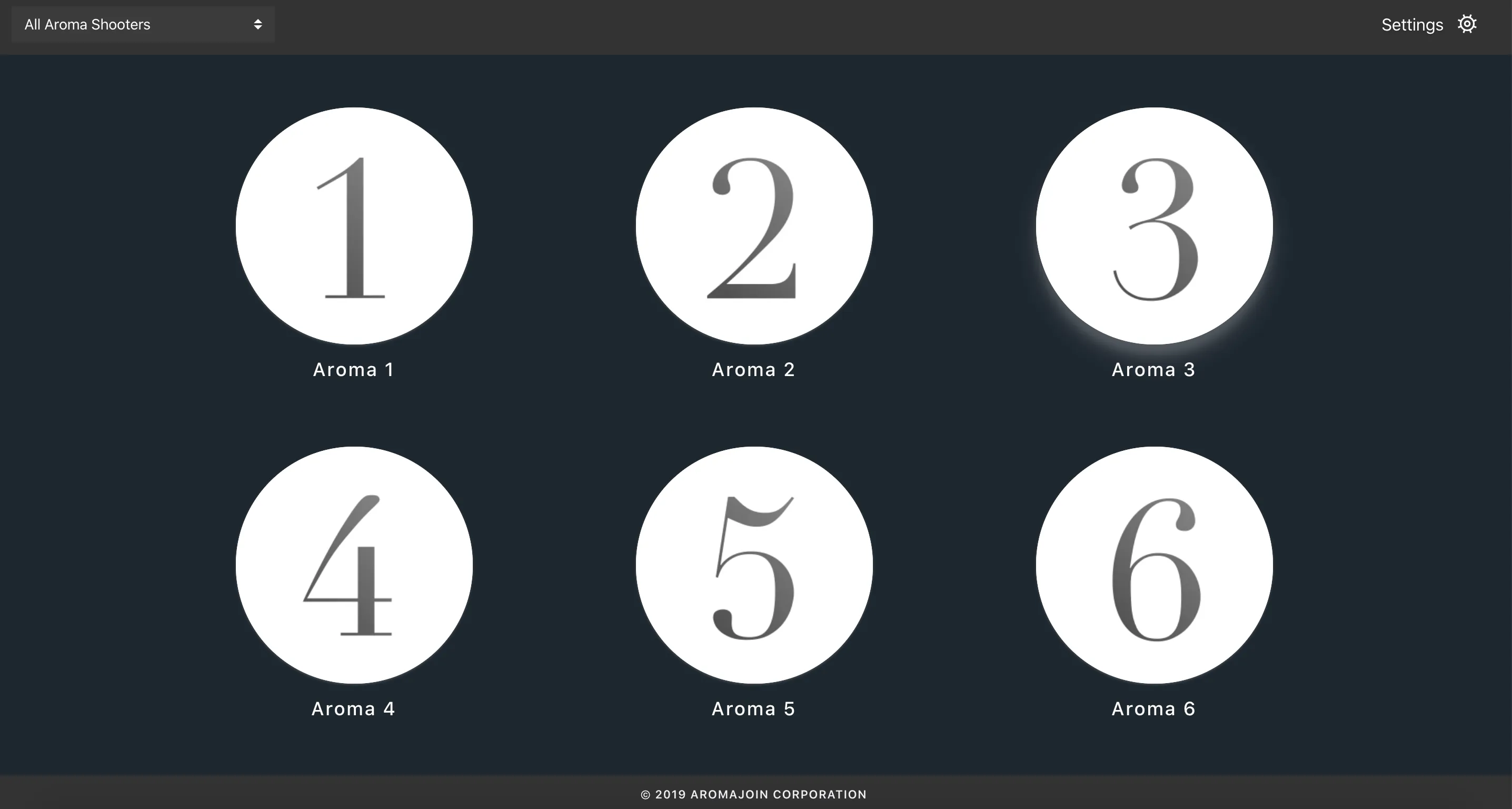
Home screen
Launch the application and look over the screen.
Confirm the connection
To check whether an Aroma Shooter is connected, click “Settings”. Make sure your Aroma Shooter’s serial number appears under “Connected devices”.
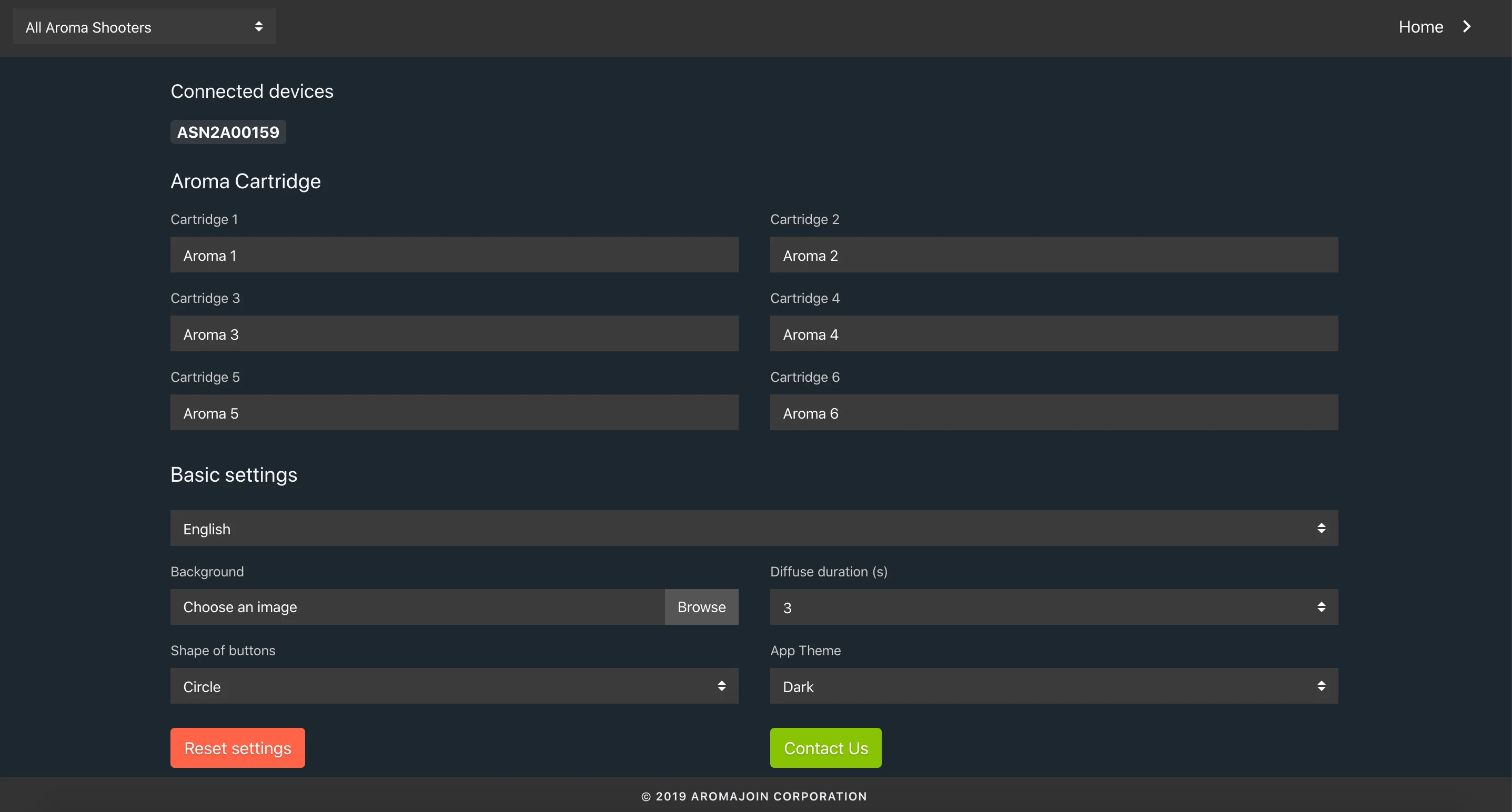
Then click “Home” to go back to the home screen.
Emit scents
Click the button of the scent you want to emit.
Cartridge display settings
To change a cartridge’s name and image, click “Settings”. Under “Aroma Cartridge”, select the cartridge you want to change and enter its new name in the popup.
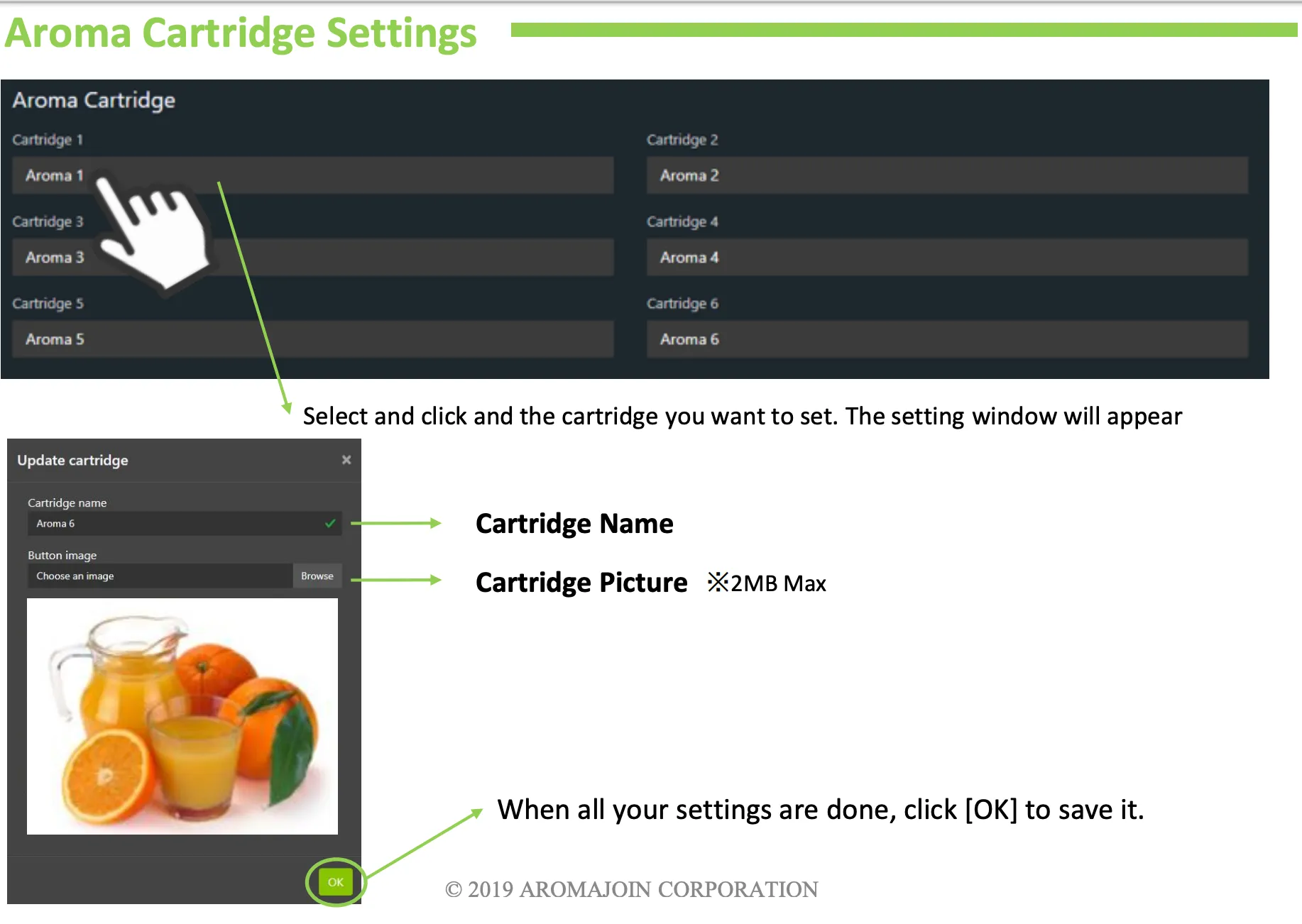
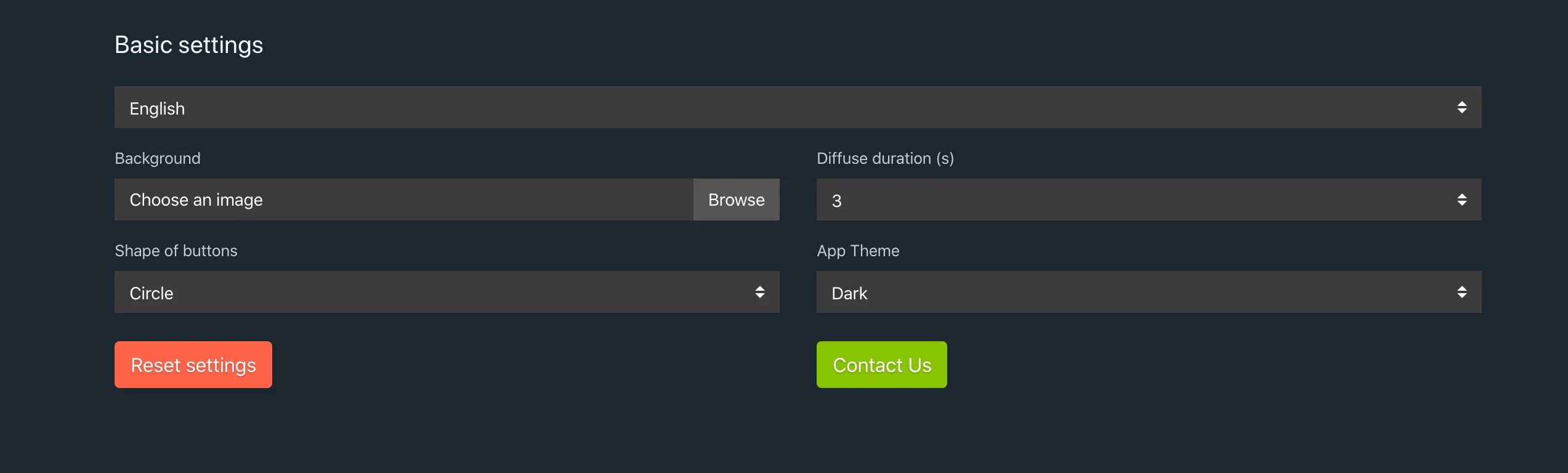
Basic settings
In “Basic Settings” you can change the app language, home screen background image, shooting duration, app theme and button shape.
Others
There are other minor functions you can explore in the app. If you have questions, write to contact@aromajoin.com.