Documentation Older manuals
AS Simulator
An iOS app that imitates an Aroma Shooter® 2, for developing and trying apps without a real device.
This app is no longer updated. This manual is kept for anyone still using it.
Aroma Shooter Simulator (AS Simulator) is an application that runs on a computing device such as a smartphone or PC. Any system that can control a real Aroma Shooter® can also control the simulator. Apart from the smell, the simulator reacts to triggers from the system in the same way as a real device.
Who is it for?
People who don’t have a real device but want to:
- Develop an app for Aroma Shooters,
- Try apps made for Aroma Shooters, such as AromaController and AromaPlayer, or
- Learn about the device itself.
Features (iOS)
- Imitates a black Aroma Shooter® 2 over BLE. Wi-Fi and USB are not available.
- Lets you set the language, serial number and cartridges.
- Lets you browse Aromajoin’s latest aroma cartridge library.
Requirements
- iOS devices: iPhone or iPad
- iOS 12.4 or later
- For haptic feedback: iPhone 7 or later
Installation
AS Simulator is no longer distributed. If you need it, please contact contact@aromajoin.com.
Main screen
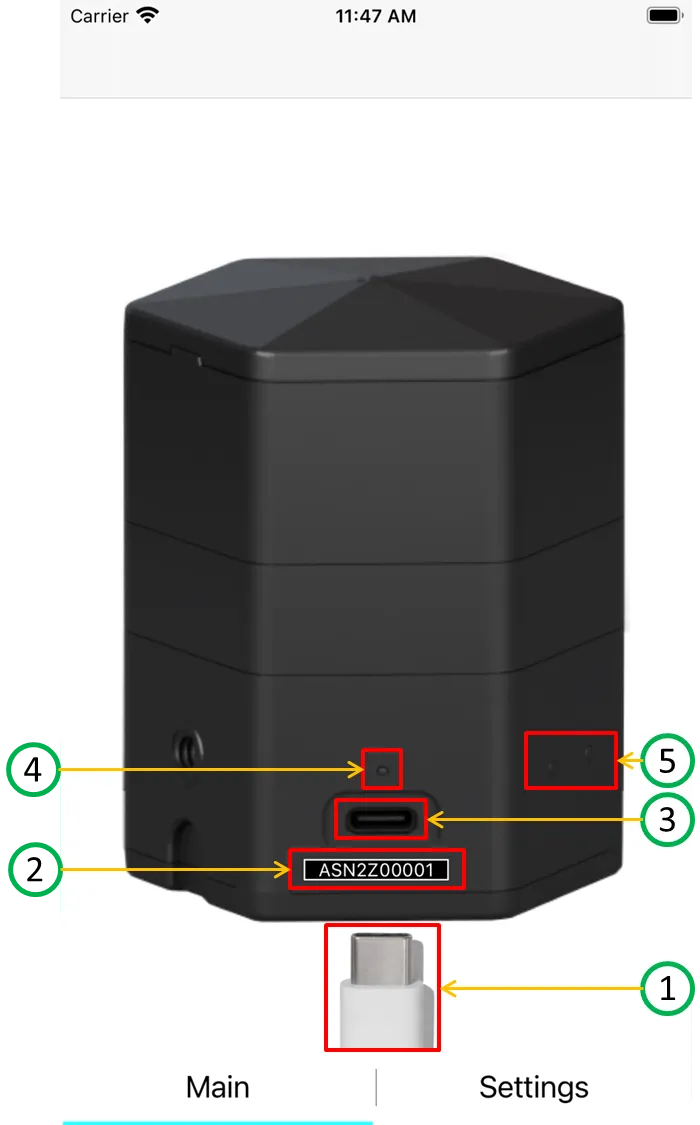
- USB Type-C cable: as with a real Aroma Shooter, drag this cable into the outlet (③) to turn the device on.
- Serial number of the simulator. You can change it on the settings screen. This number is also broadcast over BLE as the simulator’s name.
- Power outlet.
- Power LED: lit while the device is on, off while it is off.
- Shooting LEDs: light up for the channels that are emitting scent, just like a real device.
When emitting scent, a sound plays if the iOS device’s speaker is on. If haptic feedback is available, you feel it when the cable is plugged in or out.
Settings screen
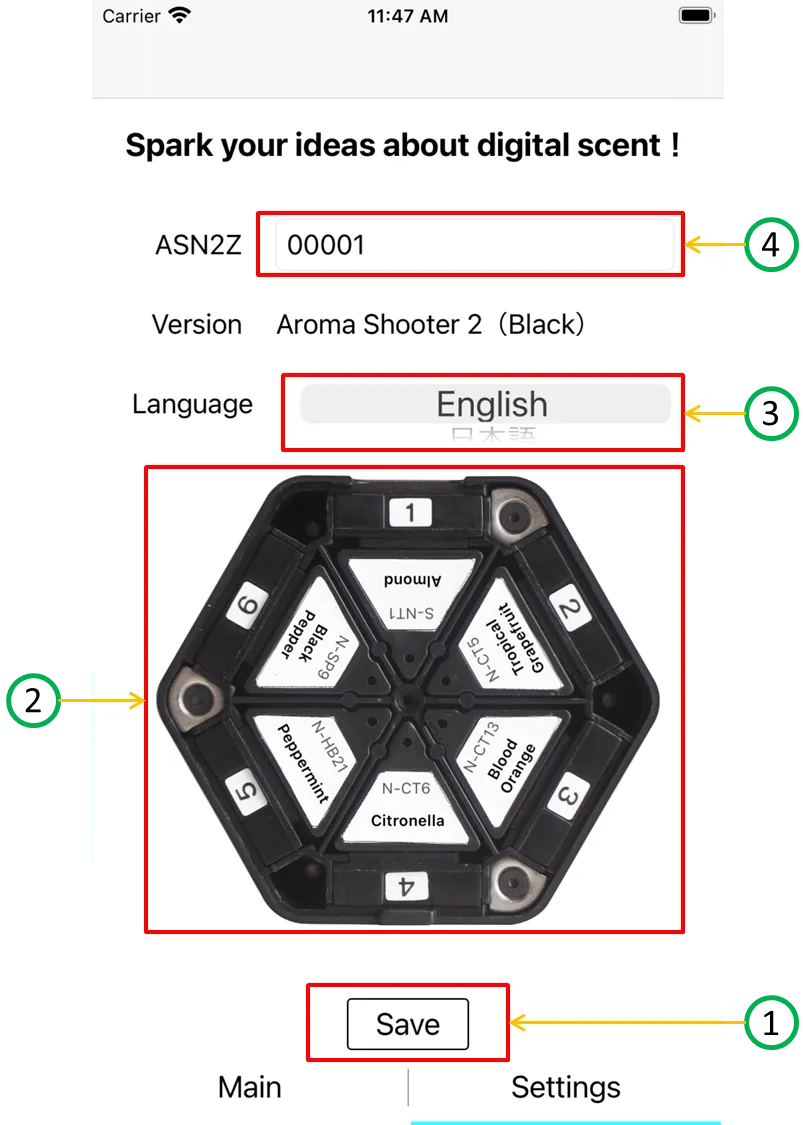
- Save button.
- Cartridge settings: touch a cartridge label to open the cartridge library screen, where you can set the cartridge for that channel.
- Language setting.
- Serial number of the simulator.
Cartridge library screen
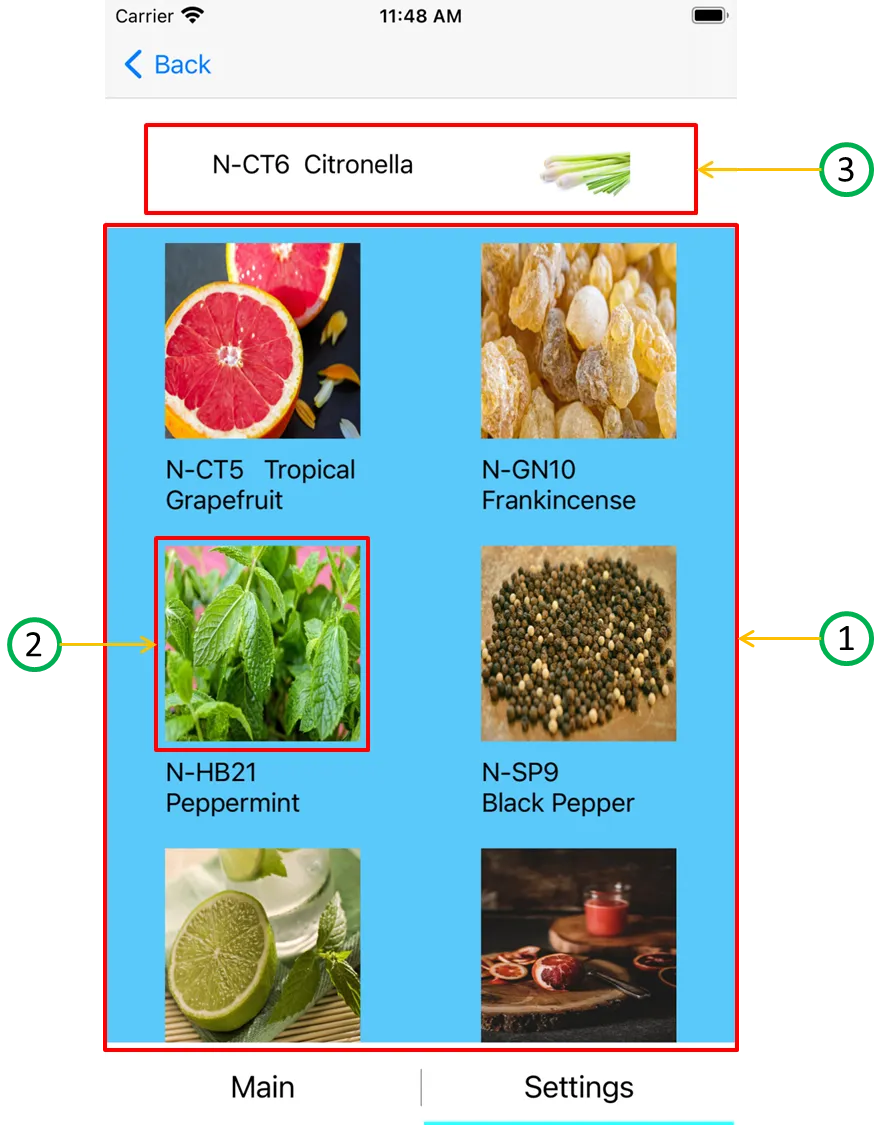
- Scroll view of the cartridges in Aromajoin’s library. It is kept up to date with the public library on our website.
- Cartridge images. Touch an image to select that cartridge.
- Information about the selected cartridge.