Documentation Older manuals
AromaPlayer Web
How to create and watch scented videos in the web version of AromaPlayer®.
This app is no longer updated. This manual is kept for anyone still using it.
This is the manual for the web version of AromaPlayer®. AromaPlayer synchronizes scent with your videos.
Features
- Create, edit and delete scent signals on a video’s timeline.
- Save scented videos to the cloud and share them in desktop web browsers.
- Connect several Aroma Shooter® devices.
Requirements
Device
- Windows or Mac PC
- Aroma Shooter® 2 or Aroma Shooter® 3
Connection
- Bluetooth BLE or USB. With Aroma Shooter® 3 over USB, the power supply may fall short, so we recommend a USB hub that supplies power.
- Internet connection
Web browser
- Google Chrome
Access
AromaPlayer Web is no longer available. If you need it, please contact contact@aromajoin.com.
Getting started
You need an account to use AromaPlayer. With an account, your progress and settings are saved online and you can open them from several devices.
Sign up
If you already have an account, skip this step.
- Click “Sign up”.
- Fill in your details on the “Create account” screen. Please read the terms of use and privacy policy.
- Click “Create Account” to finish.
Sign in
- Click “Sign In”.
- Enter your email address and password.
- Click the “Sign In” button.
Connect to an Aroma Shooter
AromaPlayer is a companion app to the Aroma Shooter, so you need to connect one to use the app’s features.
- When no Aroma Shooter is connected, the button at the top right shows a gray hexagon. Click it.
- The connection menu offers “USB Connection” and “Bluetooth Connection”.
- With “USB Connection”, choose the USB serial port the Aroma Shooter is connected to.
- With “Bluetooth Connection”, the serial numbers of nearby Aroma Shooters that are switched on appear. If yours is missing, check that Bluetooth is on and that the Aroma Shooter has power. Click your device’s serial number to connect.
- Once connected, the button shows a green check mark.
- Use “Mirroring Device” to connect more Aroma Shooters.
Set up the cartridges
After connecting, set up the cartridge information for the device.
- Click “Cartridge Setting”.
- Choose the matching aroma cartridge for each port. Custom cartridges cannot be selected.
- Click “Save”. The cartridges are set up automatically the next time you connect.
- Click “Try” to check the scent in that port.
Create a scented video
- Go to the “Creator” section.
- Click the ”+” button to create your content.
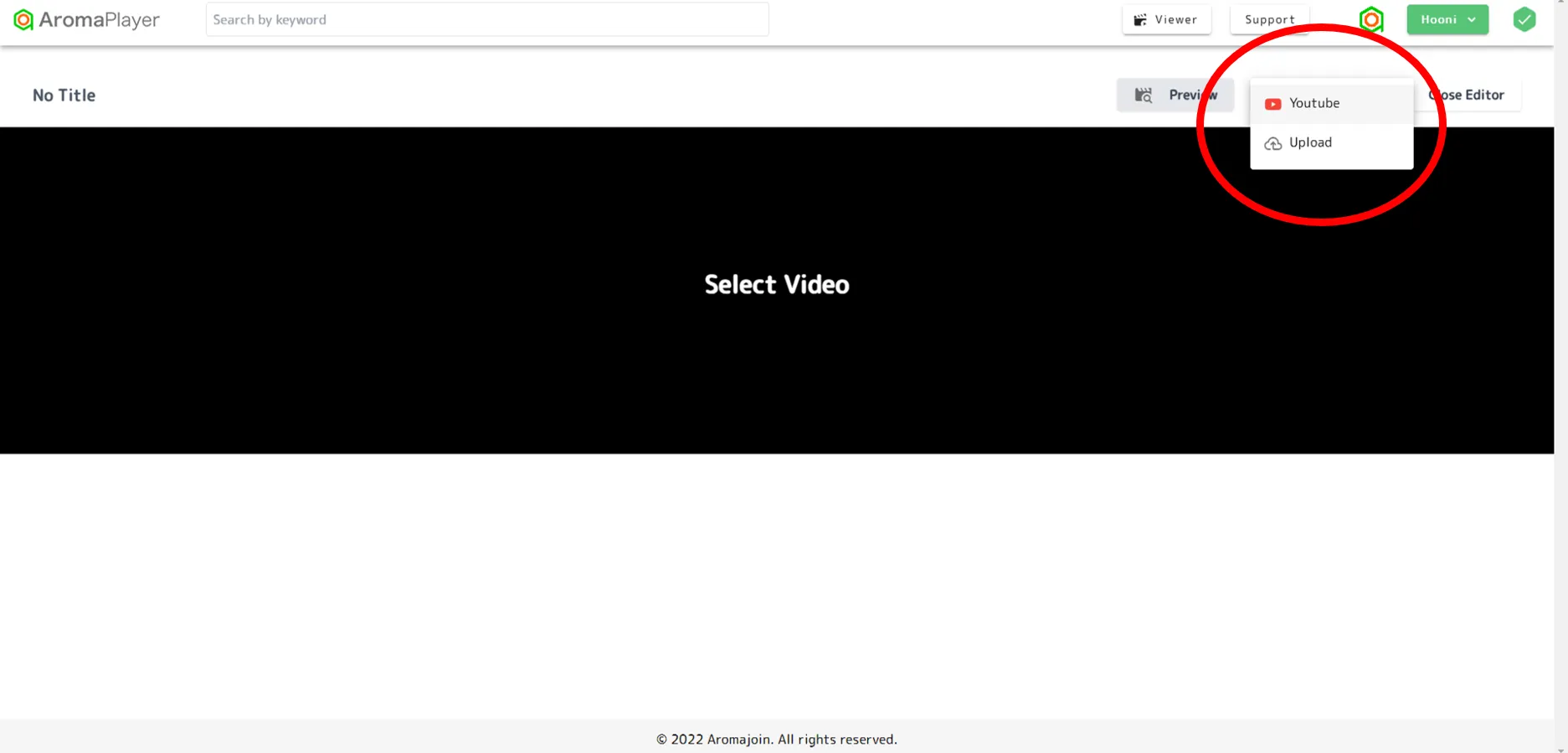
- Click “Video Select” and choose a YouTube video or a video file on your computer (“Upload”). Only webm and mp4 files (except H.265) are supported, up to 2 GB.
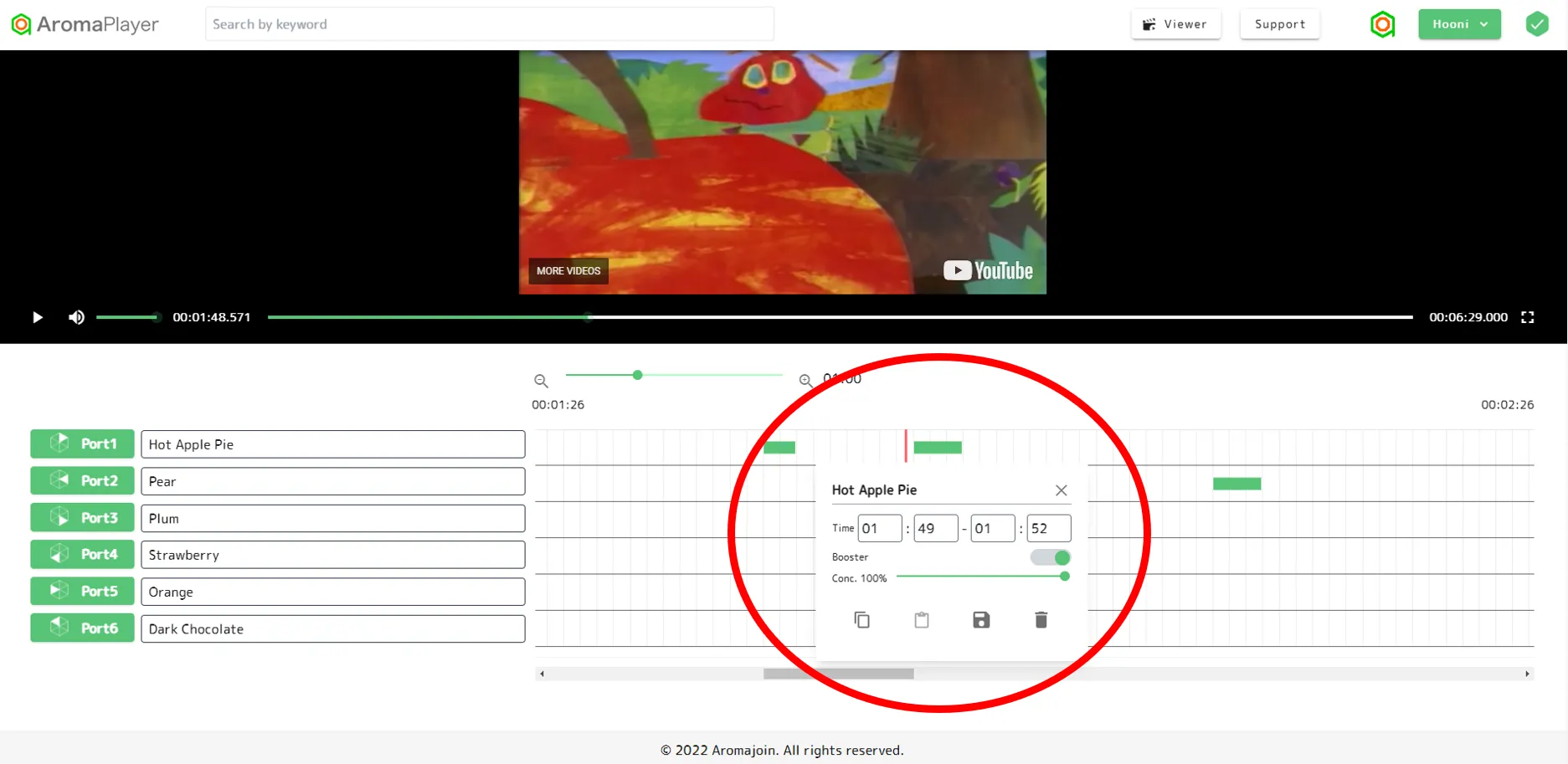
- Set up scent signals on the video’s timeline. Each signal can be up to 10 seconds long.
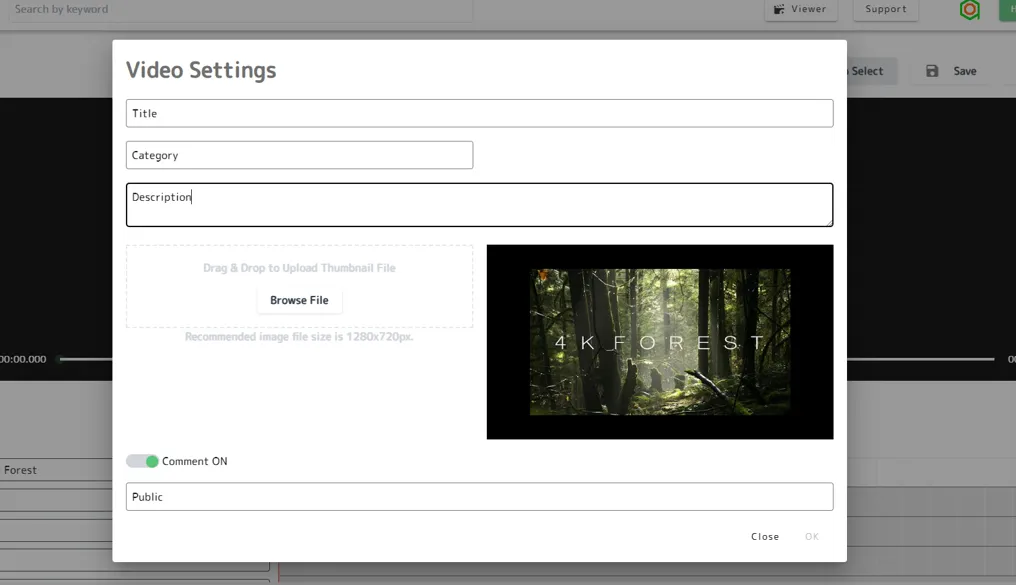
- Click “Save” and set the title, category, description, thumbnail, comments on or off, and who can see the video. If you do not choose a thumbnail, the first frame of the video is used. For limited sharing, enter the creator code of the accounts you want to allow. Only those registered accounts can open the video.
Delete or share a video
Click the ”⋮” button at the top right of a video’s thumbnail, then click “Delete” or “Share”. When you delete, a confirmation appears: click “OK”. A video set to “Private” cannot be shared.
Watch scented videos
In the “Viewer” section (the main screen), click a video to experience it.
You cannot smell a scent if you do not have the matching cartridge. In the video’s scent list, green means the scent is set up and gray means it is not.
Others
If you have a problem or need help, write to contact@aromajoin.com.